How to Set Up Your FR8 Email in the Gmail App
Follow the steps below to set up your FR8 email account on the Gmail app.
1. In Gmail app, Tap your profile icon to open the account menu.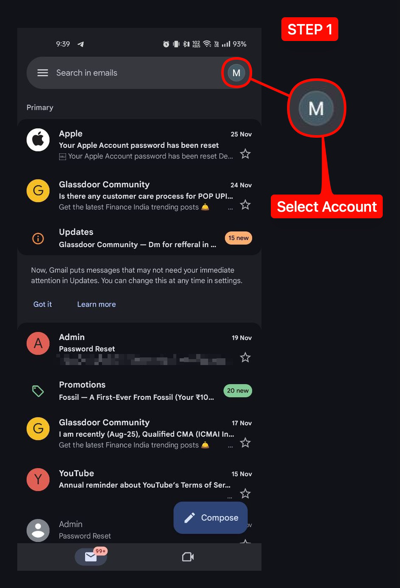
2. Tap “Add another account”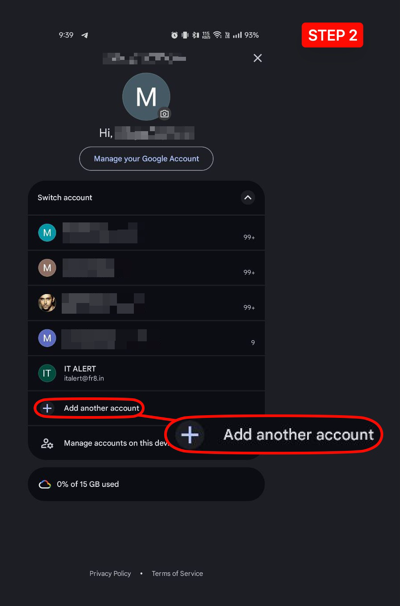
3. Select “Other” as the account type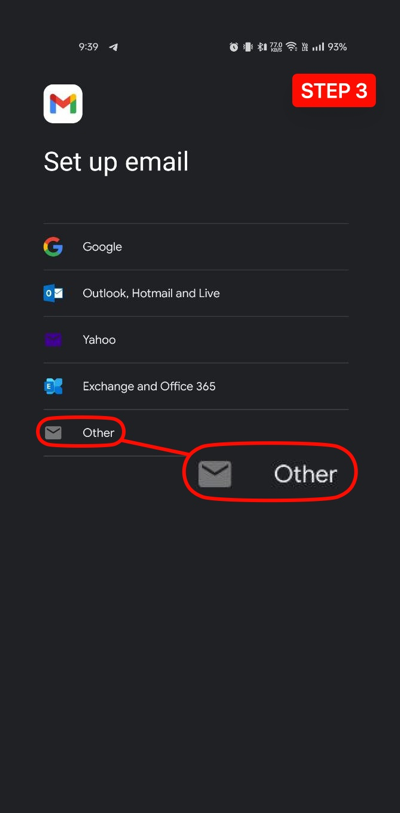
4. Enter your FR8 email ID (example: keerthana.db@fr8.in) and tap Next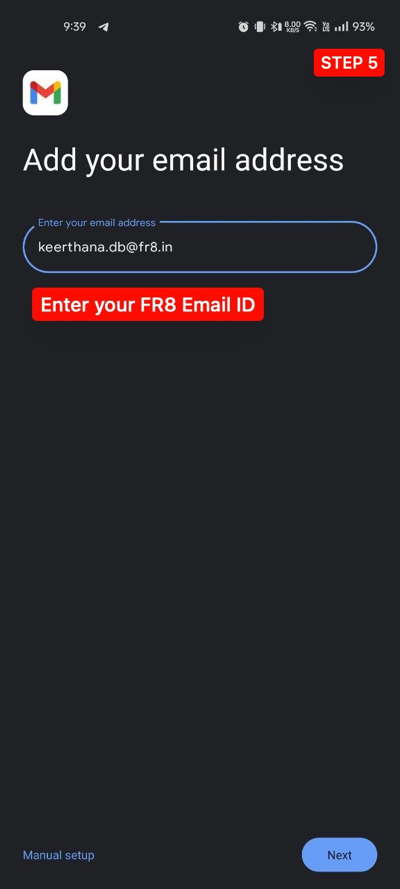
5. Choose “Personal (IMAP)”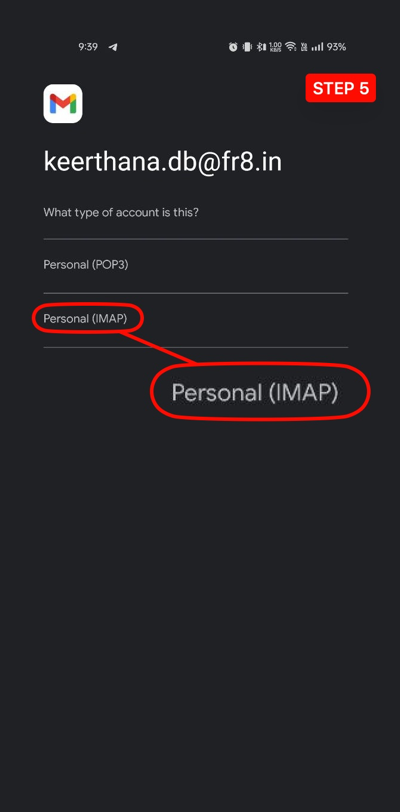
6. Choose “Personal (IMAP)”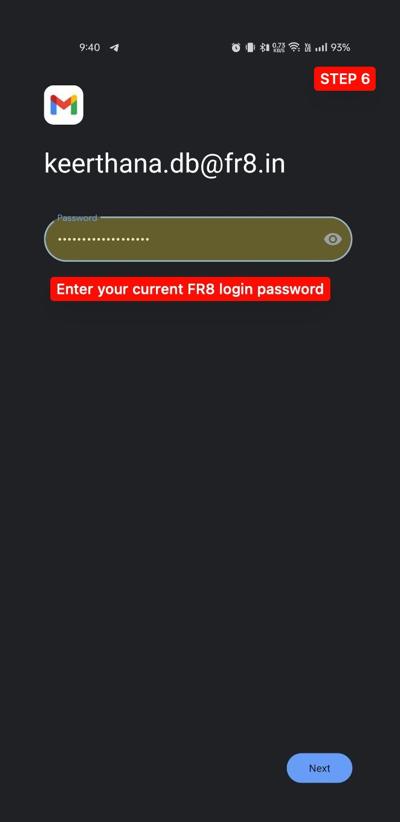
7. In Incoming server, set Server = mail.fr8.in and tap Next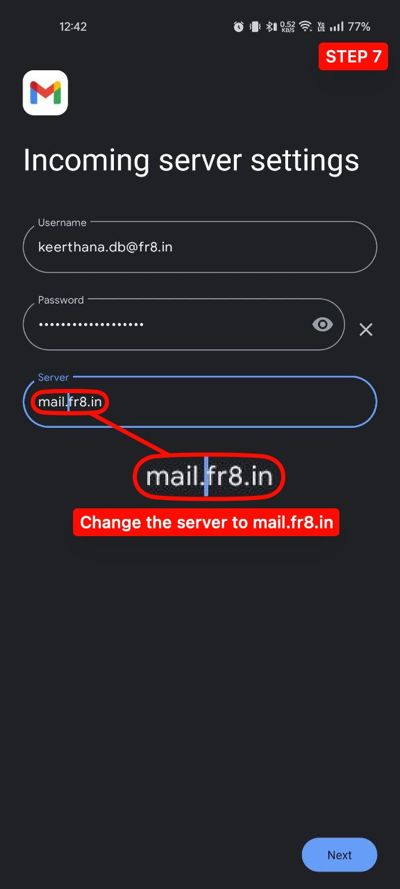
8. In Outgoing server, set SMTP server = mail.fr8.in and tap Next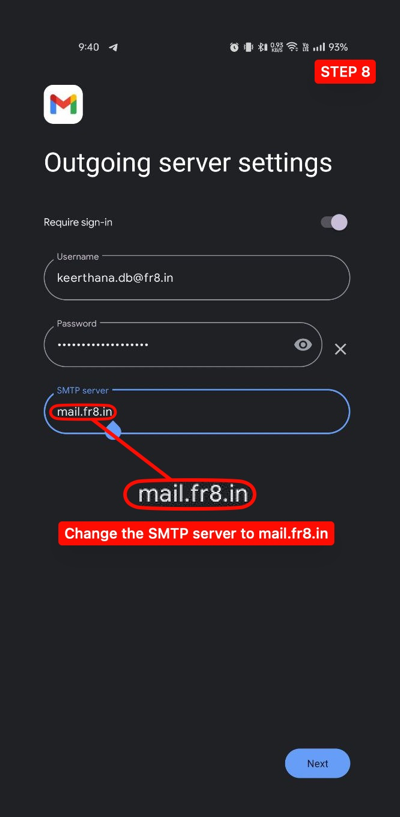
9. Set Sync frequency to “Every 15 minutes” and tick all checkboxes, then tap Next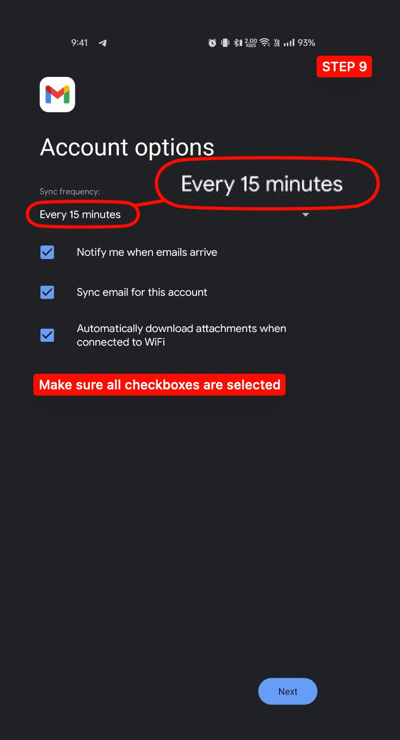
10. Enter your full name and tap Next to finish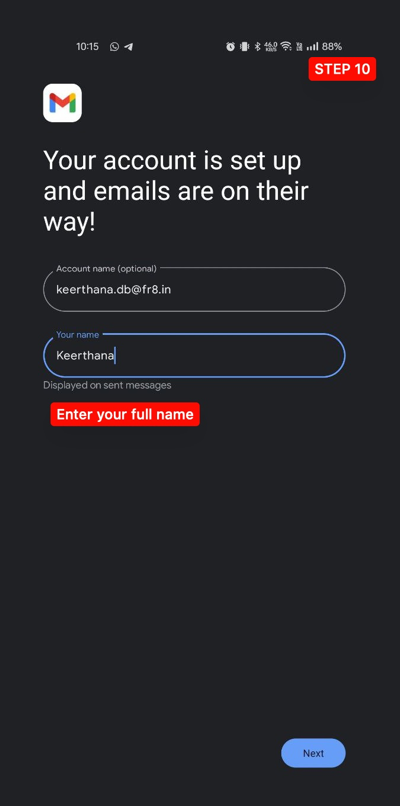
11. Your FR8 email account has been successfully added.
You can now select your FR8 email from the list to open it.
It will take a few minutes to load all your old emails.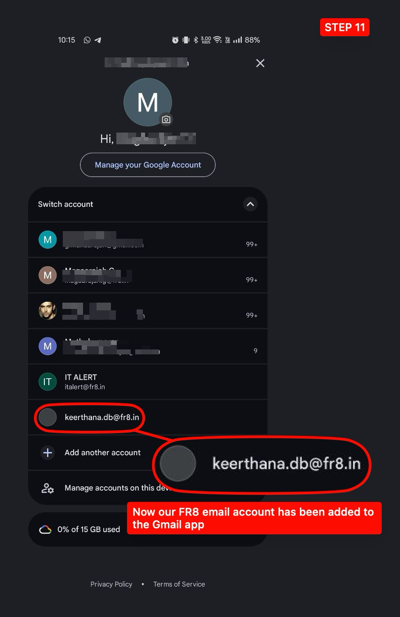
• Note:
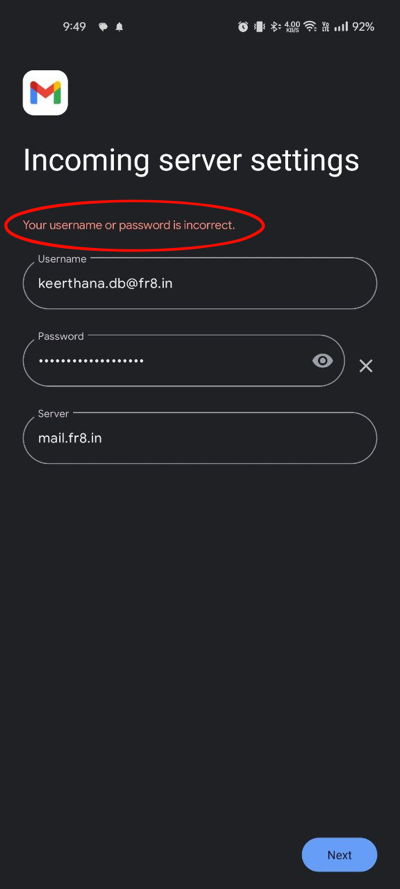
If this error appears, verify your password or reset it using the steps below,
https://wiki.fr8.in/wiki/how-to-reset-the-password
then restart your setup from Step 1.