How to Set Up FR8 Email in Windows Mail / Outlook App
This guide helps you manually add your FR8 email account to the Windows Mail/Outlook app using IMAP and SMTP settings.
It will help you send emails easily, gives you a clean and better UI, and you will also receive instant email notifications.
1. Open the Start Menu, search for Mail / Outlook, and click Open.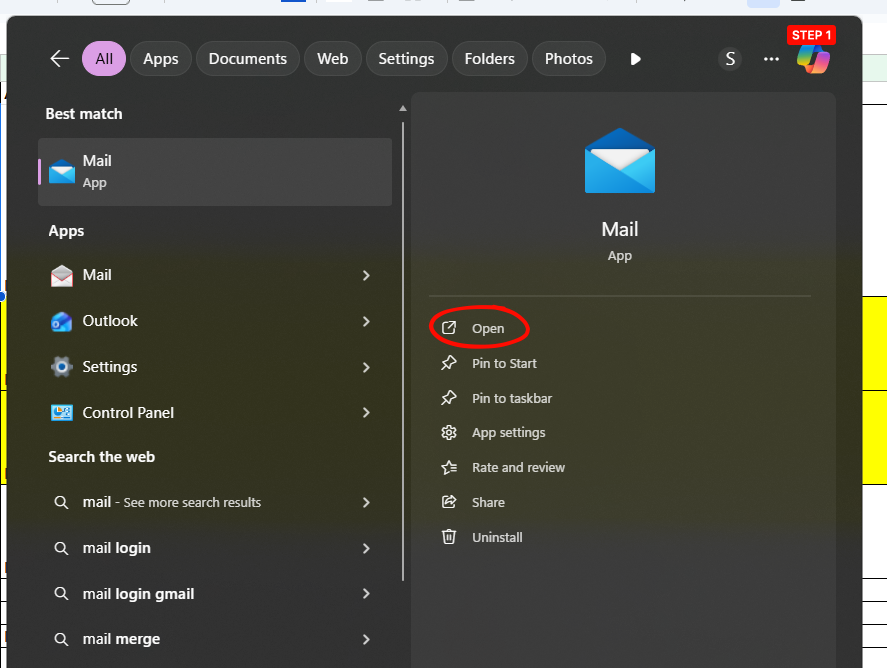
Enter your FR8 email ID in the email field. Click Continue.
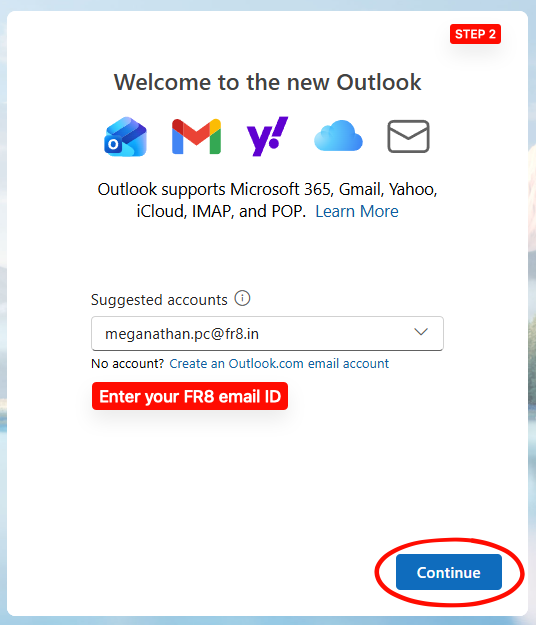
3. On the “Sync your Gmail account” page, click Cancel.
4. Click Advanced Setup at the bottom.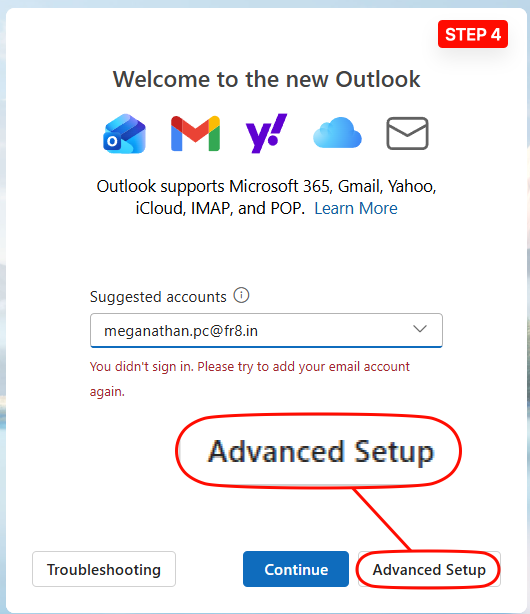
5. Select IMAP from the list.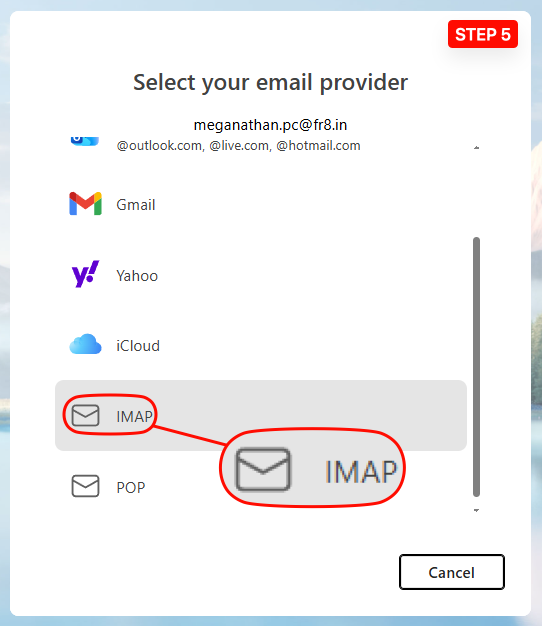
6. Enter your FR8 Current Login password. Click Show more to reveal advanced settings.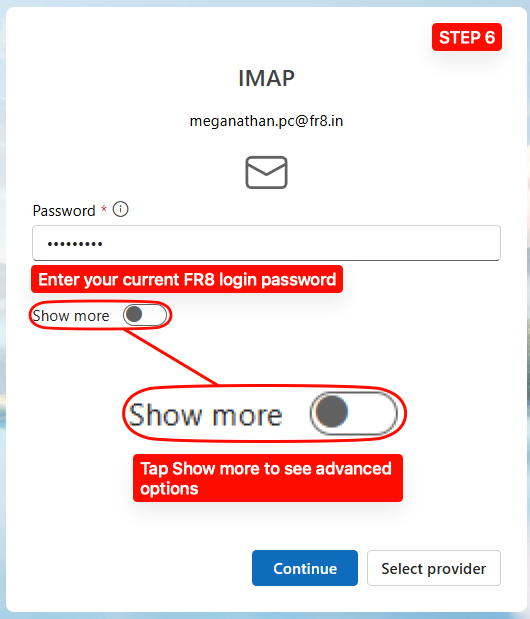
7.
• Enter mail.fr8.in in IMAP Incoming server.
• Set Port to 993.
• Scroll down.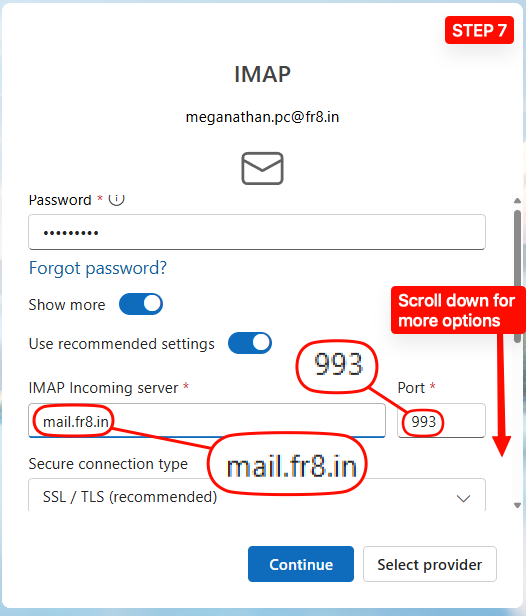
8.
• Enter your FR8 email ID as the SMTP username
• Enter your FR8 password as the SMTP password
• Enter mail.fr8.in in SMTP Outgoing server
• Set Port to 587
• Click Continue
9. Click Continue to finish the setup. Wait a few minutes for Outlook to load your previous emails.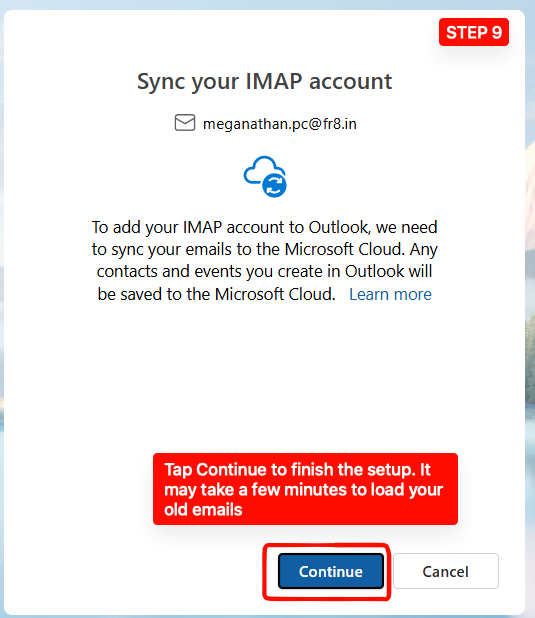
• Note:
If this error appears, verify your password or reset it using the steps below,
https://wiki.fr8.in/wiki/how-to-reset-the-password.
then restart your setup from Step 1.